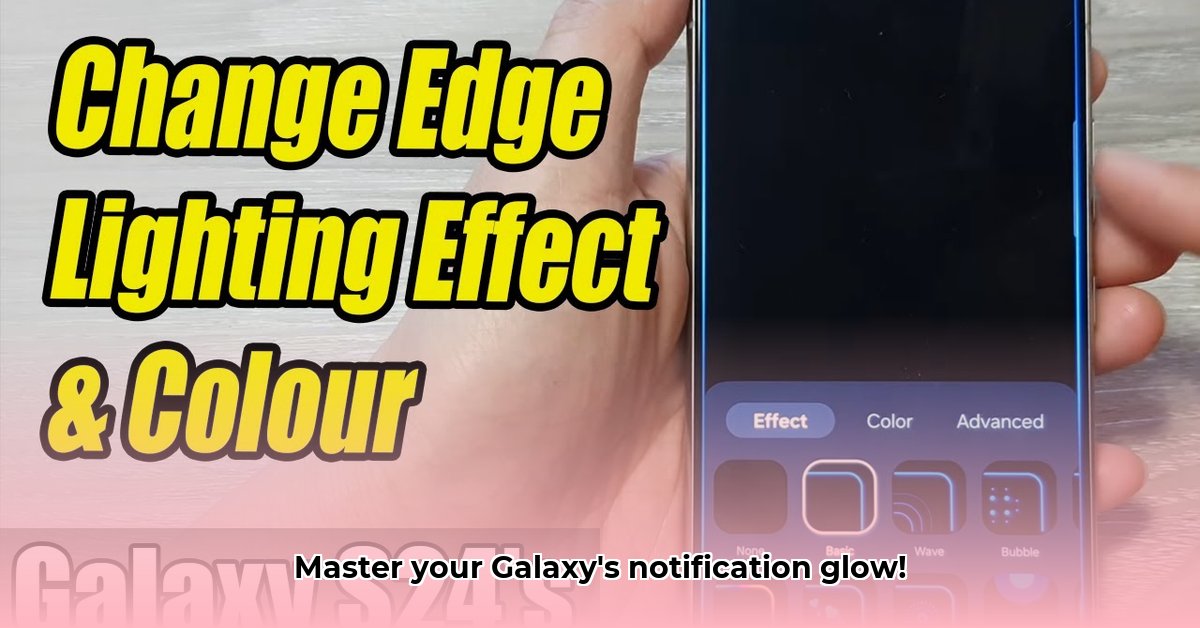
Edge Lighting Color: Personalize Your Samsung Galaxy Notifications
Tired of dull notification blinks? Let's transform your Samsung Galaxy's alerts into a vibrant, customizable light show! Edge lighting adds personality and practicality, letting you instantly identify the source and urgency of each notification with a quick glance. This guide provides a step-by-step approach to setting up and troubleshooting edge lighting, ensuring your notifications are as unique as you are.
Getting Started with Edge Lighting
Think of your phone's edges as a miniature, color-coded notification system. Each color represents a different app or message type, providing visual cues for incoming calls, texts, and app alerts. The key to unlocking this feature lies in understanding the notification settings and leveraging customization options.
Setting Up Your Edge Lighting Colors: A Step-by-Step Guide
Customizing your edge lighting is surprisingly straightforward. Follow these steps:
Access Notification Settings: Open your phone's Settings app (usually a gear icon). Locate the "Notifications" or a similarly named section. The exact location might vary slightly depending on your Android version and phone model.
Select the "Brief" Notification Style: Find the option to choose your notification style. Select "Brief" notifications. This setting often directly controls edge lighting functionality.
Customize Edge Lighting Options: With "Brief" notifications selected, you'll see options to personalize your edge lighting. This includes choosing colors, styles, duration, and transparency. Experiment with different settings to find your preferred visual style; you might be able to assign unique colors to specific apps or notification types.
Advanced Customization with GoodLock (Optional): For users seeking granular control, the Samsung GoodLock app offers extensive edge lighting customization. This app provides advanced features and options for a truly personalized experience.
Fine-Tuning Your Edge Lighting: Beyond the Basics
Beyond the basic settings, consider these advanced techniques:
Keyword-Based Color-Coding: Some Samsung models allow assigning specific colors to keywords within notifications. For instance, you could set "urgent" to trigger a bright red alert. Note that this is often case-sensitive.
Per-App Control: Tailor edge lighting to individual applications. Prefer bright purple for gaming alerts and subtle yellow for emails? You can configure this level of customization on many Samsung models, even disabling edge lighting for specific apps based on personal preference.
Troubleshooting Edge Lighting Problems
Occasionally, your edge lighting might malfunction. Try these solutions:
Verify App Notifications: Ensure notifications are enabled for the desired apps. This is a common oversight.
Restart Your Phone: A simple reboot can often resolve minor software glitches.
Check for Software Updates: Update your phone's operating system to address potential bugs or compatibility issues affecting edge lighting.
Edge Lighting: Weighing the Pros and Cons
| Feature | Advantages | Disadvantages |
|---|---|---|
| Customization | Highly personalized, offering fine-grained control. | Can be complex to set up; requires some trial and error. |
| Visual Appeal | Makes notifications more noticeable and visually engaging. | May be distracting in quiet environments (movie theaters). |
| App Integration | Generally compatible with most apps. | Limited color options for certain third-party applications. |
Beyond the Basics: A Personal Touch
Mastering your Samsung Galaxy's edge lighting is about more than technical proficiency; it's about creating a notification system tailored to your personal preferences. Experiment with various settings and find the ideal blend of visual appeal and practical functionality, transforming your phone's alerts into a unique and enjoyable experience.
How to Fix Samsung Edge Lighting Notification Issues
Three Pivotal Points for Resolving Edge Lighting Problems:
- Resetting app preferences often resolves the majority of edge lighting problems..
- Animation settings in Accessibility and Developer options can impact edge lighting functionality. Make sure these settings are enabled.
- Software updates frequently contain bug fixes related to edge lighting.
Encountering issues with your Samsung Galaxy's edge lighting? Follow these steps to get your notifications back on track.
1. Resetting App Preferences: A Highly Effective Solution
This method often provides a quick fix for edge lighting issues. It resets notification settings without deleting data.
- Open your phone's Settings app.
- Tap "Apps" or "Applications."
- Tap the three vertical dots (More options) in the upper right corner.
- Select "Reset app preferences."
- Confirm the reset. Restart your phone for the changes to take effect.
This simple process effectively resets the notification system, addressing many edge lighting problems.
2. Verify Animation Settings: Are Animations Enabled?
Disabled animations can sometimes interfere with edge lighting. Check these settings:
- Accessibility Settings: Go to Settings > Accessibility. Look for animation-related settings and ensure they're enabled.
- Developer Options: If enabled, check settings related to window animations, transition animations, and animator duration scale.
Enabling these animations can often restore edge lighting functionality.
3. Software Updates: Addressing Bugs and Glitches
Outdated software may contain bugs impacting edge lighting. Keep your software updated:
- Go to Settings > Software update.
- Tap "Download and install" to initiate the update process.
Regular software updates are crucial for maintaining optimal phone performance and resolving various issues, including edge lighting problems.
4. Safe Mode: Identifying Conflicting Apps
Safe Mode temporarily disables third-party apps. If the issue resolves in Safe Mode, a recently installed app is likely causing the problem. Uninstall any recently added apps to identify the culprit. To enter Safe Mode, power off your phone, then hold down the power button until you see the Samsung logo. Release, then press and hold the volume down button until the phone boots into Safe Mode.
5. Contact Samsung Support (If Necessary)
If the problem persists after trying the previous steps, contact Samsung Support for further assistance. They can provide advanced troubleshooting or diagnose potential hardware issues.
⭐⭐⭐⭐☆ (4.8)
Download via Link 1
Download via Link 2
Last updated: Friday, May 09, 2025